Category Archives: Uncategorized

iTunes R.I.P.

iTunes R.I.P.


On May 11, 2019, Digital Music News reported that Apple was preparing to eliminate music downloads on the iTunes Store with an aggressive, 2-4 year termination timetable. After the publication of this story, Apple issued a rare denial of the alleged shutdown proposals. Apple media executive, Tom Neumayr, replied quickly,  “It is not true. We are not shutting down iTunes downloads per your story yesterday”.


Apple Music, TV and Podcasts

Three weeks later, during Apple’s Worldwide Developers Conference, Apple announced that iTunes will be phased out and replaced by three new apps called Apple Music, Apple TV and Apple Podcasts on their new operating system, macOS Catalina (10.15) which launches this fall. Disclaimer: You can continue to use iTunes in your current macOS, so I am not suggesting that you upgrade to macOS Catalina later this year.


What happens to my music?

So, how does this affect the way you store, play and organize your music? First of all, there is no need to worry that you’ll lose any content or playlists on your Mac as all previous purchases and libraries will be maintained in each new app. All songs currently located in your iTunes Library will transfer to Apple Music, including songs that were imported from your CD collection as far back as 2001 when iTunes first launched. 


The iPhone, iPad and iPod will continue to have apps for Apple Music, TV and Podcasts and unlike the Mac, they will continue to have the iTunes Store app where you’ll be able to buy music and rent or buy movies and television shows. To confuse this already confusing process of renting or buying movies and tv shows, you can also rent or buy movies and tv shows through the TV app. 


Buy, Rent. Watch

On the Apple TV (the device, not the app), iTunes will live on through Movies iTunes and TV Shows iTunes where you can rent or buy that kind of content. You can also buy movies and tv shows through the Apple TV app. The Apple Music app on the Apple TV will allow you to stream music if you have an Apple Music subscription ($9.99/month). The standalone Podcasts app on the Apple TV is where you’ll continue to download and stream podcasts.


Buying Music from Apple Music

Although iTunes as an app will cease to exist in macOS Catalina, you’ll still be able to buy music from the iTunes Store via the sidebar of the Apple Music app. For customers who use iTunes to sync their iOS devices (iPhone, iPad and iPod), Apple will provide a tool located in the sidebar of the Finder on Macs. 


History of iTunes

iTunes was launched on January 9, 2001 during Steve Jobs’ keynote speech at the MacWorld Expo in San Francisco. iTunes played audio CDs, MP3s, created MP3s from CDs and burned them onto audio CDs.  iTunes was based on the SoundJam MP software code which Apple purchased from software developer Casady & Greene in 2000. Apple added the ability to burn CDs and included it in Mac OS 9 and later in Mac OS X (March 2001). Apple’s upward climb to become the world’s first publicly traded company to reach a market value of $1 trillion began here with iTunes and the iPod.


iTunes and iOS Device Timeline

iTunes 1.0 – January 9, 2001

iTunes for Mac OS X – February 21, 2001

iTunes 2.0 – October 23, 2001 (iPod support & equalizer)

iPod – October 23, 2001 (5GB for $399 – “1,000 songs in your pocket” )

iTunes 3.0 – July 17, 2002 (Smart playlists and Audible.com audiobook support)

iTunes 4.0 – April 28, 2003 (iTunes Music Store 200K songs @ $.99 each, iPod 3rd Gen support)

iTunes 4.1 – October 2003 (Windows support added)

iTunes 4.8 – May 9, 2005 (International music stores and iPod Video support)

iTunes 4.9 – June 28, 2005 (Podcasts and Motorola ROKR mobile phone support)

iTunes 5.0 – September 7, 2005 (Parental controls, smart shuffle and iPod nano support)

iTunes 6.0 – October 12, 2005 (GUI & Music Store changes, iPod Classic support)

iTunes 7.0 – September 12, 2006 (iPod games, gapless playback, CoverFlow added)

Apple TV – January 9, 2007 (Intel Pentium M CPU with 40 or 160 GB storage)

iTunes 7.2 – May 29, 2007 (iTunes Plus with DRM Free Music @ $1.29 per song)

iPhone – June 29, 2007 (4GB @ $499, 8GB @ $599 with 2-year ATT contract)

iTunes 7.3 – June 29, 2007 (iPhone support added)

iPod Touch – September 5, 2007 (3.5”, ARM 400MHz CPU with 8 or 16GB storage)

iTunes 7.7 – July 10, 2008 (App Store added, iPhone & iPod Touch wireless iTunes control)

iTunes 8.0 – September 9, 2008 (Genius sidebar and playlists added)

iTunes 9.0 – September 9, 2009 (Genius mixes, Home Sharing, iTunes LPs & iTunes Extras)

iPad – April 3, 2010 (9.7” screen, A4 CPU, 16, 32 or 64GB storage)

iTunes 10.0 – September 1, 2010 (Apple TV support, renamed AirTunes to AirPlay, new icon)

iPad mini – November 2, 2012 (7.9”, A8 CPU, 16, 32 or 64GB storage)

iTunes 11.0 – November 29, 2012 (UI redesign, new Store, improved search)

iTunes 12.0 – October 16, 2014 (Family Sharing, Recently Added, iTunes Store updates)

iTunes 12.2 – June 30, 2015 (Apple Music support, iTunes Connect, new icon)

iPad Pro – November 11, 2015 (12.9”, A9X & M9 CPU, 32, 64, 128, 256, 512 or 1TB storage)

Apple TV 4K – September 12, 2017 (A10X Fusion CPU, 32 or 64GB NAND Flash storage)

iTunes 12.9 – September 24, 2018 (macOS Mojave support, new Apple Music features)

BEWARE MALWARE, RANSOMWARE, AND LOST PASSWORDS

Beware Malware, Ransomware
and Forgotten Passwords

Think twice about 2FA

Internet security threats in the form of malware are increasing daily and becoming more insidious and invasive than ever before. The source of this malicious software can show up on your computer disguised as emails emanating from well-known companies like Adobe, Amazon, Apple, FedEx, Google and Microsoft or appear after selecting click-bait on news sites or social media platforms. In some cases, after clicking on streaming video content (YouTube, Facebook, Vimeo, etc.), you are warned that Adobe FlashPlayer is out of date and you need to update it. 99 times out of 100, this and other well-disguised scams are fraudulent and you should never click on or install the update.

In recent developments, unscrupulous fraudsters utilizing robotic auto-dialers send out warnings via text or voice suggesting that your cloud or email accounts have been hacked requiring you to take immediate action. You are then invited to call their 800 number so that technicians standing by can help you alleviate this non-existent threat by paying a one-time fee that will protect your computer from future outbreaks. Sometimes, the advertisements produced by adware can appear as uncloseable  windows or audible warnings requiring immediate action. When this happens, you should exit or force quit your web browser. In no circumstances should you follow the instructions to call or chat with an online technician.

If you have inadvertently allowed someone to take control of your computer, there is a possibility that ransomware, a dangerous form of malware, could have been covertly installed on your computer by the online technician who is allegedly eradicating viruses from your computer. It’s purpose is to encrypt your data files and render them unreadable until the payment of ransom is collected. Again, never let anyone take over your computer, and do not give out your credit card, passwords or any personal information for any reason.

To combat these cyber threats and to add another layer of security that is nearly impossible to breach, Apple, Facebook, Google, Yahoo and other companies that provide email, cloud and social media accounts have instituted a system called 2-Factor Authentication (2FA). It is designed to ensure that you’re the only one who can access your account, even if someone else knows your password.  With 2FA, your account can only be accessed on devices you trust (iPhone, iPad, computer). When signing in to a new device for the first time, you are required to provide two pieces of information – your password and the six-digit verification code that is sent to your trusted devices.

2FA dramatically improves the security of your accounts and personal information (contacts, calendars, notes) by requiring a separate code, so your password alone is no longer enough to access your accounts. This keeps the hackers out, however, if you do not have access to another trusted device when you are trying to connect or reset a new device, you may experience insurmountable problems, including a locked out account or a phone that becomes inoperable. If you aren’t in the habit of having the second device with you or you can’t remember your password, an alternative option is to turn off 2FA and answer the security questions like “What is the name of your first pet?” or, “What city did your parents meet in?” Just make sure that you have these answers written down or better yet, put them in the Notes section of your Contacts on your passcode protected smartphone.

At caféMac, we spend a third of our time helping clients with their passwords and security issues. If you write down your account names, passwords and answers to your security questions (include the date you created or changed this information), you will save money and time solving these problems.

Security Threats and 2FA

Security Threats & 2FA

Internet security threats in the form of malware are increasing daily and becoming more insidious and invasive than ever before. The source of this malicious software can show up on your computer disguised as emails emanating from well-known companies like Adobe, Amazon, Apple, FedEx, Google and Microsoft or appear after selecting click-bait on news sites or social media platforms. In some cases, after clicking on streaming video content (YouTube, Facebook, Vimeo, etc.), you are warned that Adobe FlashPlayer is out of date and you need to update it. Ninety-nine times out of one hundred, this is fraudulently. If any of these threats occur, DO NOT CLICK OR CALL.

In recent developments, unscrupulous fraudsters utilizing robotic auto-dialers send out warnings via text or voice suggesting that your cloud or email accounts have been hacked requiring you to take immediate action. You are then invited to call their 800 number so that technicians standing by can help you alleviate this non-existent threat by paying a one-time fee that will protect your computer from future outbreaks. Sometimes, the advertisements produced by adware can appear as unclosable windows or audible warnings requiring immediate action. When this happens, you should exit or force quit your web browser. In no circumstances should you follow the instructions to call or chat with an online technician. 

If you have inadvertently allowed someone to take control of your computer, there is a possibility that ransomware, a dangerous form of malware, could have been covertly installed on your computer by the online technician who is allegedly eradicating viruses from your computer. It’s purpose is to encrypt your data files and render them unreadable until the payment of ransom is collected. Again, never let anyone take over your computer, and do not give out your credit card, passwords or any personal information for any reason.

To combat these cyber threats and to add another layer of security that is nearly impossible to breach, Apple, Facebook, Google, Yahoo and other companies that provide email, cloud and social media accounts have instituted a system called 2-Factor Authentication (2FA). It is designed to ensure that you’re the only one who can access your account, even if someone else knows your password.  With 2FA, your account can only be accessed on devices you trust (iPhone, iPad, computer). When signing in to a new device for the first time, you are required to provide two pieces of information – your password and the six-digit verification code that is sent to your trusted devices. 

2FA dramatically improves the security of your accounts and personal information (contacts, calendars, notes) by requiring a separate code, so your password alone is no longer enough to access your accounts. This keeps the hackers out, however, if you do not have access to another trusted device when you are trying to connect or reset a new device, you may experience insurmountable problems, including a locked out account or a phone that becomes inoperable. If you aren’t in the habit of having the second device with you or you can’t remember your password, an alternative option is to turn off 2FA and answer the security questions like “What is the name of your first pet?” or, “What city did your parents meet in?” Just make sure that you have these answers written down or better yet, put them in the Notes section of your Contacts on your passcode protected smartphone. 

At caféMac, we spend a third of our time helping clients with their passwords and security issues. If you write down your account names, passwords and answers to your security questions (include the date you created or changed this information), you will save money and time solving these problems.

– Witty Words of Wisdom from the Wonderful Wizard of Witous

HOW I.T. ALL BEGAN

HOW I.T. ALL BEGAN


The origin and timeline of the Internet.

In his 1999 book, Weaving the Web, Tim Berners-Lee, the creator of the World Wide Web, discusses the futuristic, utopian technology that eventually helped create the present-day “inter-web” that has become an integral part of our technology-based culture. He described the past, present and future of the World Wide Web as follows:

“The vision I have for the Web is about anything being potentially connected with anything. It is a vision that provides us with freedom, and allows us to grow faster than we ever could when we were fettered by the hierarchical classification systems into which we bound ourselves. It leaves the entirety of our previous ways of working as just one tool among many. It leaves our previous fears for the future as one set among many. And it brings the workings of society closer to the workings of our minds.”

This is how it all went down.

1957

The Soviet Union sent the satellite Sputnik 1 into space on October 4, 1957. In response, the U.S. government created DARPA—the Defense Advanced Research Projects Agency. The agency’s specific mission was to prevent technological surprises like the launch of Sputnik, which signaled that the Soviets had beaten the U.S. into space. Today DARPA’s mission is still to prevent technological surprise to the U.S., but also to create technological surprise for enemies of the U.S.

1963

In October 1963, J.C.R. Licklider, from the high-tech firm Bolt, Beranek and Newman (BBN), was appointed head of the Behavioral Sciences and Command and Control programs at DARPA. He is credited with the earliest ideas for computer networks intended to allow general communications among computer users, and named it the Intergalactic Computer Network. He enlisted Ivan Sutherland and Bob Taylor to help create the network, which became known as ARPANET, the first real network to run on the packet-switching technology that today is the dominant basis for data communications worldwide.

1969

DARPA awarded BBN the contract to build the ARPANET computer network in early 1969, and on October 29 of that year, small computers called “Interface Message Processors” (IMPs), similar to present-day routers, connected computers between Stanford and UCLA for the first time, becoming the first hosts on what would become the present-day Internet. The first message was sent by UCLA student programmer Charley Kline, at 10:30 p.m. By December 5, the first permanent ARPANET four-node network was established between Stanford, UCLA, UC Santa Barbara and the University of Utah.

1971

In 1971 Ray Tomlinson developed email and made the decision to separate the user name from the domain name using the @ symbol. Also in 1971, Michael Hart manually typed the Declaration of Independence and launched Project Gutenberg to make information contained in books widely available in electronic form, thereby creating the first eBook.

1973

The Norwegian Seismic Array (NORSAR) connected to the ARPANET in June 1973, making Norway the first country outside the U.S. to be connected to the network. Shortly after, a Terminal Interface Processor (TIP) was installed in London, and a communication link from Norway to London was established.

1974

In 1974, after many failed attempts, a paper published by Vint Cerf and Bob Kahn, also known as “the fathers of the Internet,” resulted in the Transmission Control Protocol (TCP). TCP was created to link ARPA-like networks together into an inter-network that had no central control. Nine years later, on January 1, 1983, TCP/IP would become the exclusive communication protocol for ARPANET.

ARPANET expanded to the East Coast when a BBN IMP in Cambridge, Massachusetts, connected to the network in 1974. By 1981 there were 213 host computers, with another host connecting every 21 days.

1975

The first modern email program was developed by John Vittal, a programmer at USC, adding “Reply” and “Forward” functionality.

The ARPANET was declared “operational” by the Defense Communications Agency.

1976

The Apple 1 personal computer went on sale in July 1976. It had 4K RAM memory and a 6502 processor running at 1.023 MHz. It had a list price of $666.66 because Steve Wozniak liked repeating digits and because of a one-third markup on the $500 wholesale price. In October 2014, a vintage Apple 1 sold for $905,000 to the Henry Ford Museum in Dearborn, Michigan.

1977

The first PC modem was developed by Dennis Hayes and Dale Heatherington, and was compatible with the Apple II. It was a 300-baud modem that ran at a blazing speed of 300 bits per second.

1978

The first bulletin board system (BBS) was developed in Chicago by Ward Christensen and Randy Seuss during the Great Blizzard. Also this year, the first unsolicited commercial email message, later known as SPAM, was sent out to 600 California ARPANET users by Gary Thuerk.

1980

British computer scientist Tim Berners-Lee, at the European Organization for Nuclear Research (CERN) in Switzerland, launched ENQUIRE, a hypertext program that allowed scientists at the particle physics lab to keep track of people, software and projects using hypertext and hyperlinks.

1982

Scott Fahlman created the first popular emoticon 🙂 and proposed using it after a joke. Kevin MacKenzie, who created the similar emoticon -) in 1979, missed popularity by one character.

Because of government funding, certain types of network communications were discouraged or prohibited. The following excerpt from the 1982 MIT Artificial Intelligence Lab Handbook, regarding network etiquette, is laughable with regard to today’s standards:

“It is considered illegal to use the ARPANET for anything which is not in direct support of Government business … personal messages to other ARPANET subscribers (for example, to arrange a get-together or check and say a friendly hello) are generally not considered harmful… Sending electronic mail over the ARPANet for commercial profit or political purposes is both antisocial and illegal.”

1983

Name servers were developed in 1983, as was the deadline for ARPANET computers to switch over to the TCP/IP protocols developed by Vinton Cerf.

1984

On January 24, Apple Computer introduced Macintosh, so that 1984 didn’t have to be like Orwell’s book. That same year, the Domain Name System (DNS) was created to make addresses on the Internet more human-friendly compared to its numerical IP address counterparts.

1985

The Whole Earth Electronic Link, or “The Well,” was developed by Stewart Brand and Larry Brilliant in February of 1985. It began as a community of the readers and writers of the Whole Earth Review.

1987

By 1987 there were nearly 30,000 hosts on the Internet.

1988

The first major malicious Internet-based attack was caused by “The Morris Worm,” written by Robert Tappan Morris, and caused major interruptions across large parts of the Internet.

1989

Apple Computer terminated its AppleLink program in 1989 and the project was renamed America Online. It made the Internet popular among average Internet users.

Tim Berners-Lee proposed the World Wide Web in his article in the March 1990 issue of MacWorld magazine.

1990

ARPANET was formally decommissioned on February 28, 1990, when the original IMPs were phased out after the introduction of the National Science Foundation Network (NSFNet).

The code for the World Wide Web, written by Tim Berners-Lee, was introduced, along with the standards for HTML, HTTP and URLs.

1991

Senator Albert Gore Jr. began crafting the High Performance Computing and Communication Act of 1991, commonly referred to as the Gore Bill.

The first Web page went live on August 6, 1991. It was dedicated to information on the World Wide Web project and was created by Tim Berners-Lee on a NeXT computer at CERN.

The MP3 file format for compressed audio files became a standard in 1991.

The first webcam was deployed at a Cambridge University computer lab with the sole purpose of monitoring a particular coffeemaker so that lab users could avoid wasted trips to an empty coffeepot.

1993

Mosaic, the first graphical Web browser for the general public, co-written by Marc Andreessen and Eric Bina, was released in June 1993.

The White House and United Nations went online and marked the beginning of the .gov and .org domain names.

1994

Netscape Navigator, Mosaic’s first competitor, was released in 1994 and dominated the web browser category throughout the 1990s.

1995

Echo Bay made their first online sale in 1995 (they later changed their name to eBay). Amazon.com also launched in 1995 although it didn’t make a profit for six years.

Also this year, Secure Sockets Layer (SSL) encryption was developed by Netscape to make financial transactions safer online.

1996

HoTMail (homage to HTML), the first webmail service, was launched by Saber Bhatia and Jack Smith in Mountain View, California.

1998

The first news story to break online was the Bill Clinton/Monica Lewinsky scandal, or “Monicagate.”

Larry Page and Sergey Brin launched Google Inc.

2000

The dotcom collapse of 2000 resulted in huge losses in the technology sector.

2001

Wikipedia launched its online encyclopedia.

2003

MySpace opened its online doors and became the largest social networking site in the world from 2005 to 2009.

2004

The term “Social Media” became mainstream concepts instantly.

Facebook was launched on February 2, 2004, by Mark Zuckerberg, along with Harvard students and roommates Eduardo Saverin, Andrew McCollum, Dustin Moskovitz and Chris Hughes.

2005

YouTube launched, offering free online video hosting and sharing.

2006

Twitter was created in March 2006 by Jack Dorsey, Evan Williams, Biz Stone and Noah Glass.

2007

The iPhone was introduced on June 29, 2007.

2016 and Beyond

There’s a certain feeling of freedom when using the Internet, surfing the Web, sending emails and texting messages. However, with this freedom comes the responsibility of abiding by basic rules of conduct and mutual respect in our communication with others.

cafeMac TRAVEL TIPS

cafeMac TRAVEL TIPS


It’s summertime again, and with vacations and travel plans coming up, it’s time to review the top travel tips and apps for your smartphones.

iPhone TipsIf you’re traveling abroad for more than two weeks, consider swapping SIM cards and go native. The rates can be as low as $2 per day for unlimited texts and calls.

Travel TipsTravel to France, Italy and Spain in September. You’ll miss most of the crowds and the airfare is less expensive.

Always TipWhen in Rome, do as the Romans and tip, but make sure you tip before the meal or tour. Your service will be much better and you’ll probably be treated more like family than tourists.

Traveling Abroad

If you are taking your phone outside of the United States, there are a few precautions you can take to avoid expensive cellular bills that result from international data and voice usage while you are abroad. To avoid these charges, you should setup an international plan to save money or turn off your cellular service completely before leaving home. If you want to go off the grid and not receive any phone calls, you can forward all calls to another cell or landline while you’re gone using the call forwarding feature of your iPhone or other smartphone.

AT&T Int’l Plans

AT&T offers the AT&T Passport plan that covers over 200 countries. For $40/month, you get unlimited texting, calls at $1 per minute and 200 MB of data. $60 buys you unlimited texting, calls at $.50 per minute and 300 MB per month. And for $120 a month you still get unlimited texting, with calls at $.35 per minute and 800 MB of data. Call AT&T at 800-331-0500 for more details.

Verizon Int’l Plans

Verizon offers their TravelPass plan that allows you to take your current domestic talk, text and data allowances with you to more than 100 countries for $10 per day, and you are only charged for the days you use your device abroad. They also offer a $40 per month plan which includes 100 minutes of calls ($1.79 per minute after the first 100 minutes), 100 outgoing texts, unlimited incoming texts and 100 MB of data. Verizon’s customer service number is 800-775-8098.

T-Mobile Int’l Plan

The Simple Choice International plan from T-Mobile has no monthly fee and is included with domestic T-Mobile accounts. It includes unlimited data and texts with calls at $.20 per minute in over 140 countries. Almost seems too good to be true. Call them for details at 877-413-5903.

Unlocked SmartPhones

If your phone is unlocked, it makes sense to purchase a prepaid SIM card when you land at your international destination. Look for kiosks at the airport offering daily or weekly plans that cost a couple of dollars per day. They will register and activate for you on the spot. When I traveled to Australia in 2014, I purchased a prepaid SIM card at the Sydney airport and had unlimited texts and calls with 500 MB of data for only $2 per day. To find out if your phone is unlocked or how to unlock your phone, call your cellular provider before leaving the U.S.

WiFi Only

For those of you who want to take your iPhone for WiFi use only, go to your Settings, turn on AirPlane Mode and turn on WiFi. This will allow you to send and receive emails, make FaceTime video and voice calls and send iMessage texts without any additional charges. If you leave your cellular service on while abroad, you can rack up significant charges for data and calls. If someone calls you and it goes to voicemail, you will still be charged for a one-minute call at the international rate ($.20 –  $2.50 per minute)

Top Travel Apps

Having access to a smartphone on vacation can help you book accommodations, check on flight schedules and make reservations at restaurants and museums. Here’s some of the top apps to make your trip more enjoyable.

airbnb

The simple, easy to use interface of airbnb makes it one of the most popular accommodation apps available. It is an online marketplace that enables people to list, find and rent vacation homes (for a processing fee) at over 1.5 million locations in 34,000 cities and 191 countries worldwide. Other lodging apps include HomeAway, VRBO and TripAdvisor.

FaceTime

Apple’s FaceTime is the simplest, most intuitive video and calling app for the iPhone. Calls connect almost instantaneously and are fluid and smooth on WiFi connections. PC Magazine gave it the Editor’s Choice award for best overall video call experience.

FlightBoard

This app turns your smartphone into the Arrivals and Departurs board for any airport in the world. It lets you view all flight information in near real-time as it is updated every five minutes. It’s beautiful, old school design was inspired by the flight board at Charles de Gaulle Airport in Paris.

Free WiFi Finder

This app helps you find free WiFi hotspots in more than 50 countries around the world. Once you download the app, you don’t have to be connected to the Internet to find the nearest hotspot.

Google Flights

This app provides a solid, powerful tool for booking travel. The built-in flexible dates feature finds the best price for flights showing real, current prices by month. It also has a Discover Destinations feature that lets you find destinations based on month and duration. According to CheapAir.com, the sweet spot for finding tickets at their lowest price is about 54 days in advance.

Google Translate

Translates between 52 languages offline and 103 languages when connected to WiFi. It also features visual translation when you use your camera to translate text instantly in 29 languages. In conversation mode, it provides two-way instant speech translation in 32 languages. This is the best and fastest translation app available.

HostelBooker

This independent hostel booking app for backpackers, students and budget travelers has no booking fees at over 3,500 hostels, hotels and B&Bs worldwide. The simple and fast interface is easy to use and accessible in English, German, Italian, Spanish, French and Portuguese.

SkyScanner

This global metasearch app finds comparisons for flights, hotels and transportation. In addition to its flight search engine technology, Skyscanner also features regular news items from the travel and flight industry.

Stay.com

Download this smart city travel guide (150 city destinations) while connected to a WiFi hotspot and then use the maps offline without cellular GPS to conserve your data plan. This app includes recommendations for adventurous food, pulsating nightlife, independent shopping and cozy cafés all curated by local travel and food experts.

TripIt

The TripIt travel organizer app connects to your email account and automatically compiles your travel information based on the confirmation emails you receive. It finds the important details for flights, hotels, rental car reservations and restaurant bookings and collates them into a simple, readable itinerary.

Uber

This app allows smartphone users to submit a trip request which is routed to independent Uber drivers in over 60 countries and 450 cities worldwide. With an Uber account, you don’t need local currency. When your ride is over, Uber charges your credit card and you don’t have to tip.

WhatsApp

This free messaging app uses your phone’s internet connection (cellular or WiFi) to text message or call your friends and family. It can also share your location with other WhatsApp users.

XE Currency

This app gives you up to date currency exchange rates. It offers live proprietary currency rates and stores the last updated rates so it can be used offline.

To insure that your iPhone is secure, make sure to passcode protect it and turn on Find My iPhone through the iCloud settings. If it does get lost or stolen, no one will be able to access the contents of your phone, unless they have $1.2 million and friends in the FBI.

Malware, Ransomware & Data Breeches

Malware, Ransomware & Data Breeches


Most people are not aware of the steadily rising security threat of malware, online account hijacking, data breaches and identity theft that are being perpetrated by cyber criminals lurking on the internet today. Attackers are developing new software and methods to hack in to consumers’ computers everyday while consumers don’t understand how vulnerable they really are. In the real world, the threat from criminals is typically geographically based. In the cyber world, there are no borders, so the threat can come from anywhere at anytime. The internet is a much less safe environment than it used to be.

HISTORY OF MALWARE & VIRUSES

Malicious software, or “malware” refers to software programs designed to infiltrate and disrupt computers, gather sensitive information or display unwanted advertising without the user’s consent. Before Yisrael Radai coined the word “malware” in 1990, these malicious programs were collectively called viruses. In the early 1980’s, most viruses were created by young programmers to annoy users and to see how far it could spread, but by the late 1990’s, hackers began to create malware for economic exploitation of companies and individuals. 

TYPES OF MALWARE

There are several types of malware. The first type consists of viruses and worms that are defined by their behavior, which is designed to contagiously spread without the user’s knowledge and may or may not contain malicious code designed to damage computers. Trojan Horses are malignant pieces of software that pretend to be legitimate software while they infect computers with malware. Rootkits, which help to conceal malware from anti-virus software, do not contain malware themselves. Spyware and keyloggers, used for identity theft, phishing and social engineering threats are designed to extort money from banks, companies and individual users.

BEWARE OF POPUPS

Unexpected popups or unsolicited web pages appearing in your browser alleging the detection of viruses, Trojans (not from USC), attacks and other threats may appear to be authentic, but beware, they are intricately crafted scams that prey upon naive, trusting users. Other techniques designed to extort money from you include drive-by downloads (secretly installed through malicious web advertising), link-baiting (teasers that generate interest in another related subject), media player downloads (video websites that suggest installing software or plugins), email attachments (links to fake malicious websites), phishing emails (suggests clicking on a link) and peer-to-peer file sharing websites (including malware disguised as music or video files).

PHISHING & SHAREWARE

The most serious and most common threat to your data security is phishing, because it involves you being tricked into divulging personal information that enables hackers to access your email and financial accounts. 


It is important to understand that these messages are not caused by a virus or any other kind of malware. Most people’s first reaction to a popup message like this is to download anti-malware software. This is the wrong response, as there is no malware involved, and thus the anti-malware software will not solve the problem.

As usual, the best defense against phishing attacks is to stay vigilant and ignore or delete any messages that look even slightly suspicious. If you’re still in doubt, contact the actual company directly to verify whether there’s any real problems or not.Sometimes a web page appears that accuses you of engaging in illicit or illegal activity and looks legitimate with official law enforcement logos or banners. Please be aware that these warnings are not real, and whatever the message asks you to do, it should be completely and utterly disregarded. No matter how real or legitimate the message appears to be, it is completely fraudulent. It did not come form Apple, the FBI, the IRS or from your Facebook BFF. This kind of scareware is easily perpetrated and can affect Macs, PCs and even smartphones via any web browser.

A recent phishing scam attempts to trick users into handing over their Apple ID passwords and other personal information. People hit by the scam usually receive an unsolicited message which claims to come from Apple, urging them to immediately change their Apple ID password before it expires. Victims are then directed to an unofficial but legitimate-looking website, where they are asked to input their username and password. After that, they are told their account has been locked for “security reasons,” and are directed to enter other personal information like address and credit card details, in order to “unlock” the account. This is all part of an elaborate phishing attack, designed to get users to hand over information which can then be used to hack their account. Apple’s phishing support page advises users to “never send credit card information, account passwords, or extensive personal information” to someone, unless they’ve fully verified the senders are who they say they are.

Another scam involves iTunes gift cards and the IRS.The federal government warned consumers in late April that scammers are singing a new tune when they’re pretending to be from the Internal Revenue Service or U.S. Treasury. Now, some are demanding that you pay your back taxes via an iTunes gift card. Any call requesting that taxpayers place funds on an iTunes Gift Card or other prepaid cards to pay taxes and fees is an indicator of fraudulent activity according to a bulletin from the Treasury Inspector General for Tax Administration (TIGTA). The bulletin also warns that “no legitimate U.S. Treasury or IRS official will demand that payments via Western Union, MoneyGram, bank wire transfers or bank deposits be made into another person’s account for any debt to the IRS or Treasury”.

The IRS has previously confirmed that they will not call to demand immediate payment over the phone, call or email you to verify your identity, demand that you pay taxes without questions or appeals, require you to use a specific payment method, ask for a credit or debit card number via phone or email,  or threaten to immediately bring in local police or law enforcement to have you arrested for non-payment.

ANTI-MALWARE – MAC VS. PC

When compared to Mac users (50% use anti-malware software), Windows users (75.7% use anti-malware software) are much more likely to have at least one antivirus product installed on their device.This discrepancy could stem from the fact that many Mac users are not aware of the increased existence of Mac-specific malware. While Mac devices may have been safe from malware in the past, that is no longer the case. Kaspersky Lab discovered 1,800 malware samples for OS X in 2014 alone, up from 1,700 samples the previous year, showing that Mac-specific malware is indeed growing. 

MALWAREBYTES

Traditionally, Mac users have been viewed as safe from malware, even as new threats have been publicized. According to a June 2015 OPSWAT report, only half of Mac users have antivirus protection, and that protection does not typically detect adware. In the last two years, there has been a proliferation of new adware—including Genieo, Conduit, and VSearch—that inject ads and pop-up hyperlinks in web pages, change the user’s homepage and search engine, and insert unwanted toolbars into the browser. The only software that we recommend to combat the proliferation of these software threats is Malwarebytes (https://www.malwarebytes.org/mac-download). This anti-malware and anti-exploit software is designed to protect businesses and consumers against zero-day threats by removing malware, adware and PUPs (potentially unwanted programs) that consistently escape detection by traditional anti-virus solutions. 

DATABASE BREACHES

According to Benny Czarny, CEO of OPSWAT in San Francisco, the goal with most retail breaches is stealing credit card numbers so that criminals can use them to buy anything online or transfer money or steal directly from the banks. The gain is obvious, and the way that many have been accomplished was through malware. The goal of financial, government and medical breaches is to obtain personal information or to encrypt company files and then demand a ransom fee to unencrypt the data after payment of the ransom.

2015 has been a year plagued with huge data breaches with limited to massive exposure ranges. Social security accounts, drivers licenses, usernames and passwords have been compromised in record numbers. Here are the top breaches listed by the size of breach.

American Registered Voter Information (191 million)

Mexican Voter Information Database (93.4 million)

Anthem Health Records (80 million)

Prisoner Phone Calls (70 million)

Ashley Madison Customer Records (37 million)

Federal Government Workers (21 million)

T-Mobile Customer Records (15 million)

MacKeeper Customer Records (13 million)

Premiere Health Records (11 million)

VTech Customer Info (11 million)

Excellus Health Records (10 million)

Hello Kitty (3.3 million)

RANSOMWARE

Ransomware, one of the newest and fastest-growing types of cyber threats, encrypts data on a victim’s hard drive, then offers to unlock the system in exchange for payment. Ransomware is secretly installed on the victim’s computer then gathers and encrypts data over a short period of time. Victims are then required to pay ransoms in hard-to-trace digital currencies like BitCoin to unlock their encrypted files. The quickest and most efficient means of restoring their computer files was to pay the ransom to obtain the decryption key. 

According to CEO Allen Stefanek of the Hollywood Presbyterian Medical Center, they were victims of a ransomware extortion plot in which hackers seized control of their electronic medical records system and demanded a $17,000 ransom to be paid in BitCoin currency. They were given back access only after the ransomware was paid. The FBI and local authorities were not able to assist in the recovery efforts, nor able to track down the culprits.

On a personal computer, ransomware doesn’t need root access, because it’s not trying to take over your computer; rather, it’s looking for the kinds of files that you care about most, such as photos, spreadsheets, pdfs and word documents, so it can then attempt to sell them back to you. Once installed, ransomware lays dormant for several days, then starts to encrypt documents and files on your system. Specifically, it looks for 300 different extensions, ranging from .doc to .mp3 to .jpg to .txt. Currently, the most popular types of consumer targeted ransomware are Cryptolocker, Cryptowall and TeslaCrypt.

WHAT CAN YOU DO TO MINIMIZE THE THREAT?

According to David Kennedy, CEO of TrustedSec, the top three security suggestions for small businesses are:

1. Make sure everyone is aware of what phishing schemes look like and train them to avoid them.

2. Practice good security around passwords. Don’t use the same password from one system to another.

3. Make sure someone on staff has a good understanding of the latest security threats and defenses.

WHAT YOU SHOULD NEVER DO

1. Don’t call any phone number that appears on your computer screen for technical support.

2. Don’t click on any warnings or buttons.

3. Don’t allow anyone to remotely take control of your computer. 

4. Don’t give anyone your credit card number, checking account information, 

5. Don’t give out your passwords or personal information.

6. Don’t open email attachments or links that you don’t recognize. 

7. Don’t install Java, Flash or browser extensions unless you understand their purpose and know their sources.

8. Don’t rely on Google or Bing to obtain technical support phone numbers.

9. Don’t install software that claims to clean up, speed up, optimize, boost or accelerate your computer.

10. Don’t assume that anti-virus or anti-malware software will protect you from threats.

Computer Updates and Upgrades

Computer Updates and Upgrades


Should I Stay or Should I Go?

Updates vs. Upgrades

What is the difference between a software update and a software upgrade on your computer? An update is like the general maintenance (tires, brakes and oil) on your car. It doesn’t materially change the look or feel of your car, it just makes it run better. An upgrade is like adding new features to your four-year old car that were not available when you originally purchased it. So, when should you update and when should you upgrade? In general, software updates are advisable most of the time, but software upgrades are not necessarily advisable, and can actually be detrimental, especially if your computer is more than four years old. A good rule of thumb is if your computer is running fine, don’t feel that you have to upgrade just because Apple or Microsoft prompts you do do so. If it ain’t broke, don’t fix it.

What to do prior to upgrading your computer

To prevent or minimize computer software and hardware issues, there are several preventative measures you can take beforehand to make your upgrade experience more successful.

In the Windows World

To upgrade from a previous version of Windows (XP, 7 or 8) to Windows 10, you will need to do the following:

1. Back up your data to an external hard drive

2. Create a system image. Go to Control Panel and select “Back up your computer” in System & Security section

3. Update device drivers and download the latest firmware and security patches

4. Uninstall all security software (and reinstall it after Windows 10 installation)

5. Unplug all peripherals (and plug them back in after Windows 10 installation)

6. Run Window 10 Upgrade Advisor for additional information to help with the upgrade

7. If this causes too much anxiety, buy a Mac or an iPad

Windows 10, the latest operating system from Microsoft requires 1GHz CPU, 2GB of RAM, 16-20 GB of available hard drive space and a DirectX 9-capable graphics card with a WDDM driver. Windows 10 Home Edition is $120 and Windows 10 Pro Edition is $200. If your PC is more than four years old, consider buying a new one. This is the Microsoft way. 

In the Mac World

According to Apple’s upgrade website, Mac computers introduced in 2009 and later can be upgraded to the latest OS (operating system), El Capitan, but you should make sure your Mac is ready for the change. Apple suggests that your Mac has at least 2GB of RAM memory and 8.8 GB of available storage on the hard drive. In some cases, it is a good idea to increase the RAM and hard drive capacity before installing the upgrade for improved performance.

Here’s a list of things you should do in preparation for the El Capitan upgrade:

1. Make a backup up of your Mac to an external hard drive using Apple’s built-in Time Machine software

2. Run Disk Utility to verify drive health and repair the hard drive

3. Check that all Apple and third-party software applications are compatible with the the latest OS

4. Check that you have enough RAM Memory (4GB is best)

5. Check that there is enough graphics card memory to support the latest OS

6. Free up space on your Mac before upgrading (15-20GB is best)

7. Turn off FileVault or any third-party encryption software that is running

8. If you use Apple Mail to send and receive email, convert any POP email protocol accounts to IMAP before upgrading

9. Go to the Apple Menu and pull down to “About this Mac” to determine current OS, Processor, Memory and Graphics card

10. In some instances, it is better to perform a clean install of El Capitan with a Time Machine backup

Mac OS 10.11 El Capitan is a free download from Apple. However, like many free offers, there can be additional costs that are necessary to prepare your Mac for the upgrade. It’s a good idea to weigh all these factors before clicking on the upgrade button. It is important to realize that after upgrading to El Capitan, older versions of your existing software (Adobe Creative Suite, Microsoft Office, etc.) may cost hundreds of dollars to upgrade to make them compatible with the new OS.

What Can Go Wrong After Upgrades

If you have upgraded your computer to the latest operating system, you may experience some of the following issues:

1. Computer won’t start up

2. Extreme operating system slowness

3. Hard drive corruption & fragmentation

4. Graphics card issues

5. Email stops working, especially with POP protocol

6. Third-party software incompatibility (Adobe, Microsoft, etc.)

7. Printer and scanner incompatibility (Canon, Epson, HP, Brother, etc.)

8. Decreased battery life on laptops

9. WiFi and Bluetooth connection problems

10. External hard drives or SD cards don’t show up on desktop

Remember, when in doubt, call your local computer store to help you determine if an upgrade makes sense with your particular system. 

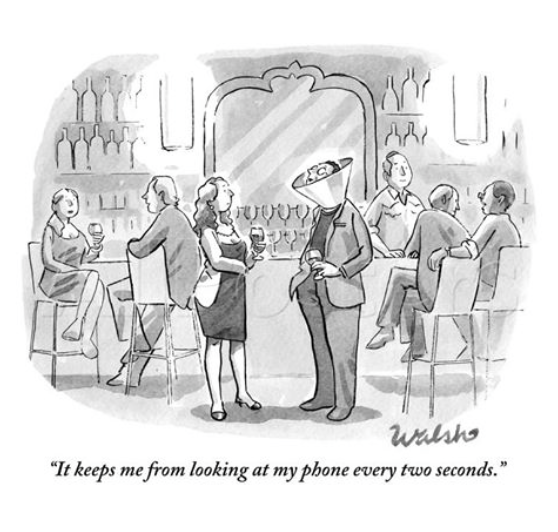
TEXT NECK

TEXT NECK


“A new study claims that poor posture caused by texting is becoming an epidemic. I’m not sure if I’ve been affected, but I have a hunch.” Seth Meyers, Late Night on NBC

TEXT NECK

Dr. Dean Fishman, a chiropractor and leading health care provider for technology induced injuries, originated the phrase Text Neck in 2008 to explain the repetitive stress injury to the body caused by excessive texting and overuse of handheld mobile devices (doctors used to call it Forward Head Posture). This condition is derived from the onset of cervical spinal degeneration resulting from the repeated stress of frequent forward head flexion while looking down and texting for long periods of time. This new MSD (musculoskeletal disorder) is plaguing mobile device users all over the world. Of the 6 billion people in the world, 4 billion have mobile phones and over 2.2 trillion text messages are sent annually.  

In a recent interview with Dr. Larry Adams of the Adams Chiropractic Neurology Group of Sonoma, he states that “Text Neck is a recent phenomenon that is happening among young people, as well as older people, because of the increased usage of cell phones, tablets and laptops while leaning in an anterior posture, looking down and causing a significant reversal in the cervical spine. It also causes weakness in the posterior muscles in the upper back which promotes a slouched and weakend posture which can affect the stability of the spine which in turn leads to neck and back pain weakness and a predilection to neck and back injuries.” 

SYMPTOMS

The symptoms associated with Text Neck include chronic headaches, upper back pain, shoulder pain, neck pain and increased curvature of the spine. The problem with texting is that it adds one more activity that causes us to look down more than we did in the past. In addition, it could possibly cause permanent damage to the spines of growing children. 

STARING AT YOUR PHONE?

The average person stares at their mobile device for nearly three hours a day. As we stare at these devices at chest or waist-level looking down at a 45 degree angle, it causes the neck muscles to be shortened and tightened and the shoulders to be rounded forward. This can cause cosmetic, muscular and neurological problems.

Repeated bending of the neck with the head tilted downward creates a specific crease just above the collar bone in the thin and delicate neck skin. According to research commissioned by Yves St. Laurent, wrinkles and sagging of the jowls and neck traditionally develop in late middle age, however, in the last ten years it has become a problem for the younger generation (18-39 year olds). This is contributing to more lines and skin laxity, loss of facial volume, sagging skin and less defined contours.

In the movie Jerry Maguire, Dorothy Boyd’s son asks, “Jerry, do you know the human head weighs 8 pounds?” According to Dr. Kenneth Hansraj, chief of spine surgery at New York Spine Surgery and Rehabilitation Medicine and author of a recent study published in Surgery Technology International, “when the human head tilts forward, the forces seen by the neck surge to 27 pounds at 15 degrees, 40 pounds at 30 degrees, 49 pounds at 45 degrees and 60 pounds at 60 degrees. With such aggressive stressors on the neck, the wear and tear on the spine can develop tears within the disc or cause slipped or herniated discs.” Hansraj warns that chronic screen-staring could “deteriorate the back and neck muscles to the point of needing surgery”. 

GOTTA KEEP YOUR HEAD UP

So, what can you do to avoid straining your neck and back muscles? Try these simple techniques developed by Bill Boissonnault, associate professor at the University of Wisconsin School of Medicine and Public Health.

1.  Hold your mobile or portable device at eye level allowing your head and neck to stay erect.

2.  Place your hand under your chin so your neck muscles are not supporting the entire weight of your head.

3.  Use a hands-free bookstand, music stand or pillow to bring your device closer to your face at eye-level.

4.  Move your head and shoulders around. Gently roll your head to it’s normal position. Roll your shoulders and squeeze your shoulder blades together and down.

If you experience any kind of neck, shoulder or back pain you can:

1.  Stretch at home

2.  Get a massage

3.  Go to a Pilates or Yoga studio 

4.  See a chiropractor or physical therapist

ADVICE FOR THE OFFICE

1.  Place your computer monitor directly in front of you

2.  Take regular breaks every 15-30 minutes

3.  Stay hydrated. Drink plenty of water

THERE’S AN APP FOR THAT!

There are several apps for the iPhone that can help you improve your posture and avoid Text Neck. The free app called Save Your Neck includes several different neck exercises. Neck & Shoulders Stretching Exercises, a 99-cent app developed by Intellipro Solutions, offers neck and shoulder extension, flexion, rotation, resistance, retraction and stretching exercises. And for Android users, the free app called Text Neck Indicator LITE helps prevent, reduce and/or reverse the harmful effects of Text Neck. It includes specific exercises designed to help improve the strength of the muscles affected by the Text Neck posture. 

Problems with Passwords

Problems with Passwords


“I needed a password that was eight characters long so I picked Snow White and the Seven Dwarves.” Nick Helm, English Comedian

“I changed all my passwords to incorrect. Whenever I forget, it tells me, Your password is incorrect.” Michael Scott, The Office

The problem with passwords is that after creating them for the multitudes of accounts we use everyday in the digital world, we inconveniently forget them when our computer or smartphone unexpectedly prompts us to enter them. “Why doesn’t the computer just remember the stupid password?”, we ask. Finally, when we get locked out of our account for repeatedly entering the wrong one, we throw up our hands and exclaim, “How can I ever remember all these damn passwords?”

Password Strategies

First of all, you are not going to remember all of your passwords, so write them down. You can create a password-protected document on your computer or enter the information in a small address book. List the account name, user name, password, secret questions and answers plus the date you created or updated the account. And, unlike Seinfeld’s George Constanza, who wouldn’t divulge his password to his fiancée, you may want to make a copy for someone you trust in the event you lose or misplace this list. You could also place a copy in your bank’s safe deposit box.

When you answer the account’s secret questions (name of your first pet, childhood friend, first grade teacher, favorite movie, etc.) make sure that this information is not available through any biographical or social media. To add another level of security, spell your answers in reverse. Sonoma becomes Amonos or Citizen Kane becomes Enak Nezitic. You can have the strongest password in the world, but if someone knows your pet’s name or the city where your parents met, then your account can be reset and compromised.

Don’t give out passwords or personal information to anyone over the phone, online or through social media. Cyber criminals are getting more advanced in their tactics (fake banner ads, adware, malware, ransomware, shareware, etc.) to encourage unsuspecting consumers to divulge their personal information, so don’t call or contact them to help you with any of your secure information. 

Password Creation 

Here’s a few ideas to help you create secure passwords.

•Use at least 8 characters, including an uppercase and lowercase letter plus a number and/or special character

•Avoid using common words or names that are found in the dictionary

•Don’t use the same password for all your accounts

•Create a unique user name and password for your online banking account

•If the account supports it, use two-step verification, which sends a confirmation text message to your mobile phone for secure password creation and authentication.

•Test the strength of your password at www.passwordmeter.com

Password Statistics

unknown.png

These are the Top 50 most used passwords. The word password used to be the most widely used password in the world. It was recently surpassed by the equally insecure 123456. 

25-33% of all help desk requests and tech support calls are the result of forgotten passwords or locked accounts.

In the United States last year, over 40 million consumers were victims of information theft at a cost of over $160 billion.

A recent survey conducted in the U.S. and U.K. by mobile identity company TeleSign, found that 40 percent of those surveyed say they had an account hacked, password stolen, or were given notice that their personal information had been compromised. The survey also discovered that 75% of all consumers use duplicate passwords, many of which have not been changed in five years or more.

Conclusion

With all this really helpful research and newfound password strategy under my belt, I logged in to the password reset page on one of my social media accounts and entered MyPen!5 for my new password.  It was rejected with the following error message, “Password error, not long enough.”